
Features
What Novella POS actually does.
This page lists what is built and working in the application today. It is not a roadmap. If something is described here, it is in the product. Anything still being finished is called out as such.
Register and checkout
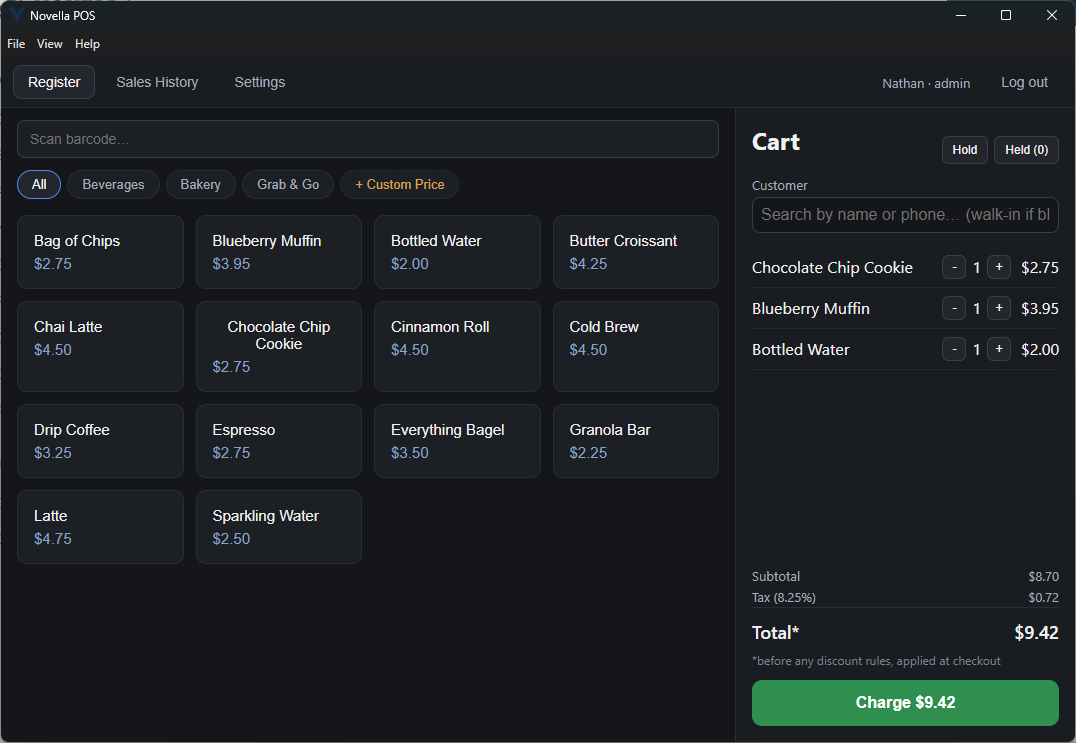
The checkout screen is the one your staff will look at all day, so it is built to be driven by a scanner, a finger, or a keyboard without switching modes.
- Barcode scanning
- Works with any USB barcode scanner that behaves as a keyboard wedge, the common and inexpensive kind. There is no driver to install and no hardware integration to configure. Scan into the cart and the line item appears.
- Category-organized product grid
- Products are laid out in a tappable grid grouped by category, for the items that never get scanned: pastries, drinks, anything sold from behind the counter.
- Manual and custom price entry
- Ring up something that is not in inventory by entering a description and a price. Useful for one-off items, special orders and repairs.
- Quick Sale
- A one-tap flow for straightforward cash-in-hand transactions, so a simple sale does not have to walk through the full checkout path.
- Held tickets
- Park a sale in progress and recall it later. A customer who forgot their wallet does not block the line behind them.
- Customer lookup
- Attach a customer to a sale by searching name, phone or email, with results filtering as you type.
Payments
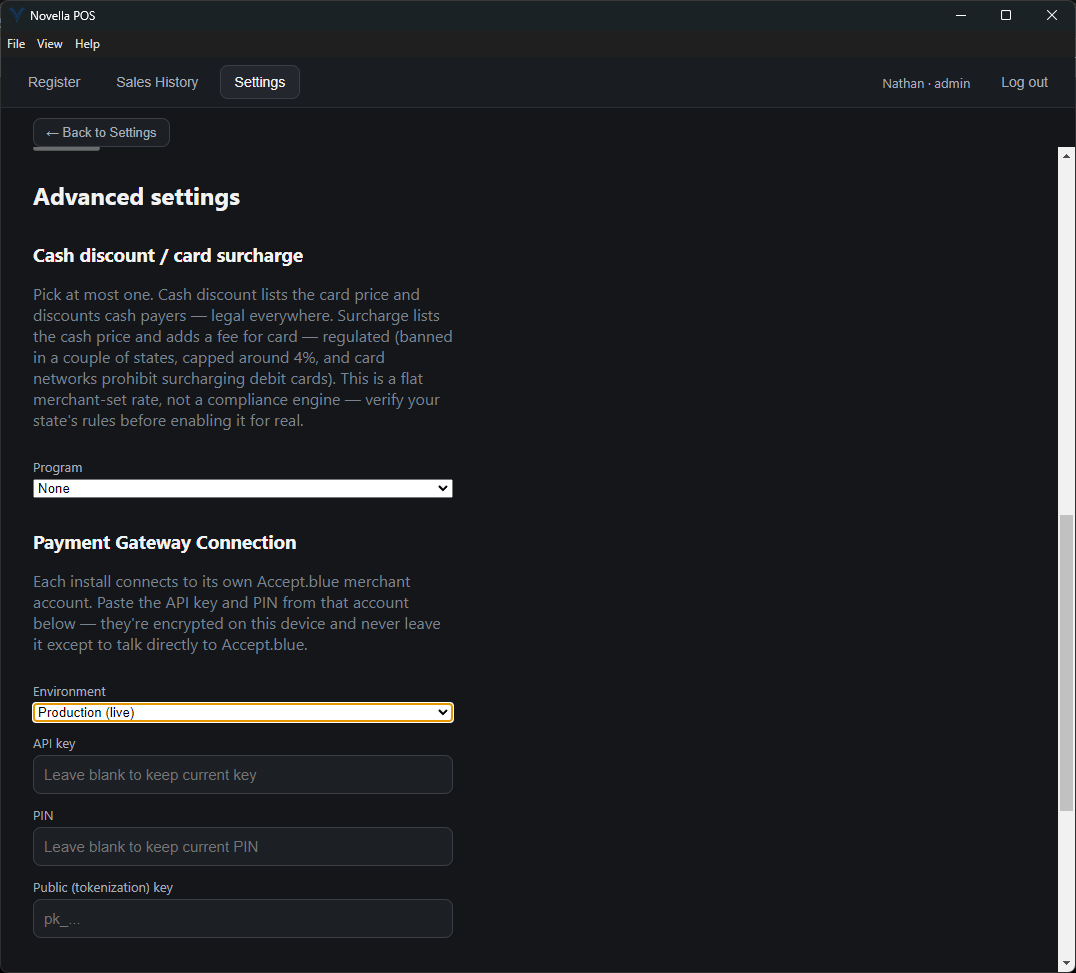
Novella POS integrates with Accept.blue as its payment gateway. Each business connects its own Accept.blue merchant account, so the processing relationship stays between you and your processor.
- Your own merchant account
- You enter your own Accept.blue API credentials once in Settings. They are encrypted at rest on the device. Your rates and your merchant agreement are yours.
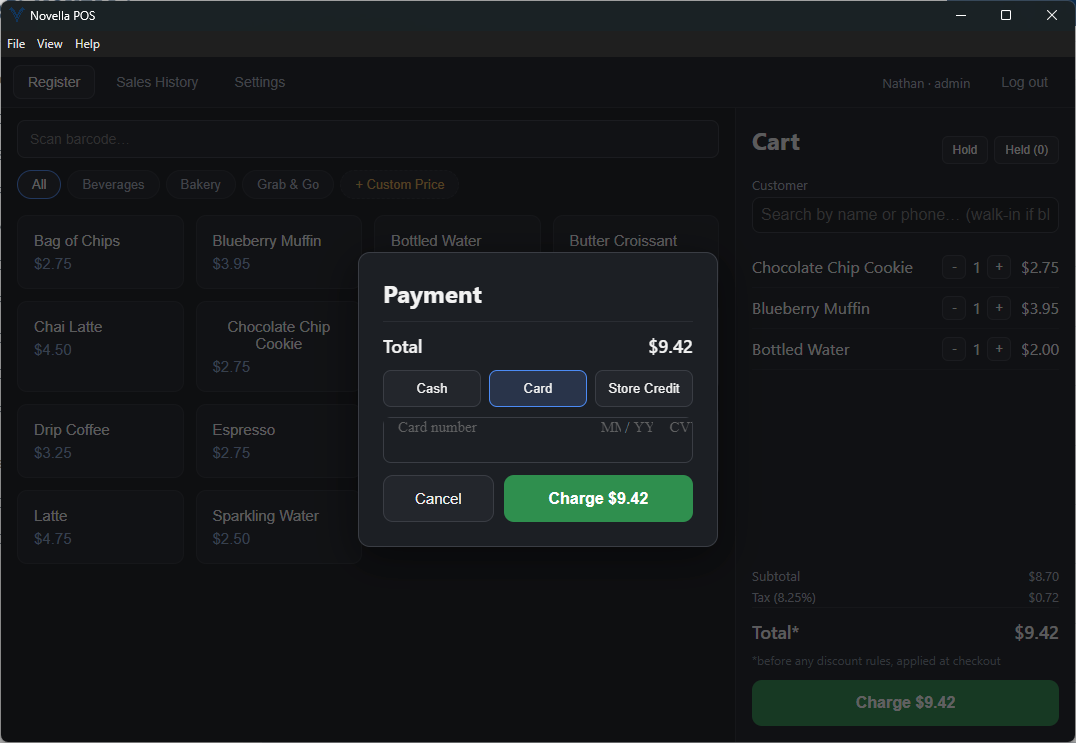
- Cash, card and store credit
- Pick the tender at checkout. Store credit draws down a customer balance, and every sale records which tender paid it, so the Sales Summary can break the period down by type.
- Card data stays out of the app
- Card entry happens inside a PCI-compliant hosted tokenization widget supplied by the gateway. Raw card numbers never touch Novella POS and are never written to the machine.
- Cash discount or card surcharge
- If you run a cash-discount or a card-surcharge pricing program, the register can apply it automatically. You configure one or the other, not both at once.
- Voids reverse the charge
- Voiding a card sale from Sales History automatically reverses the corresponding charge through the gateway.
Receipts and hardware
Receipts print through Windows, which means whatever printer you already have set up will work, whether it is thermal, inkjet or laser.
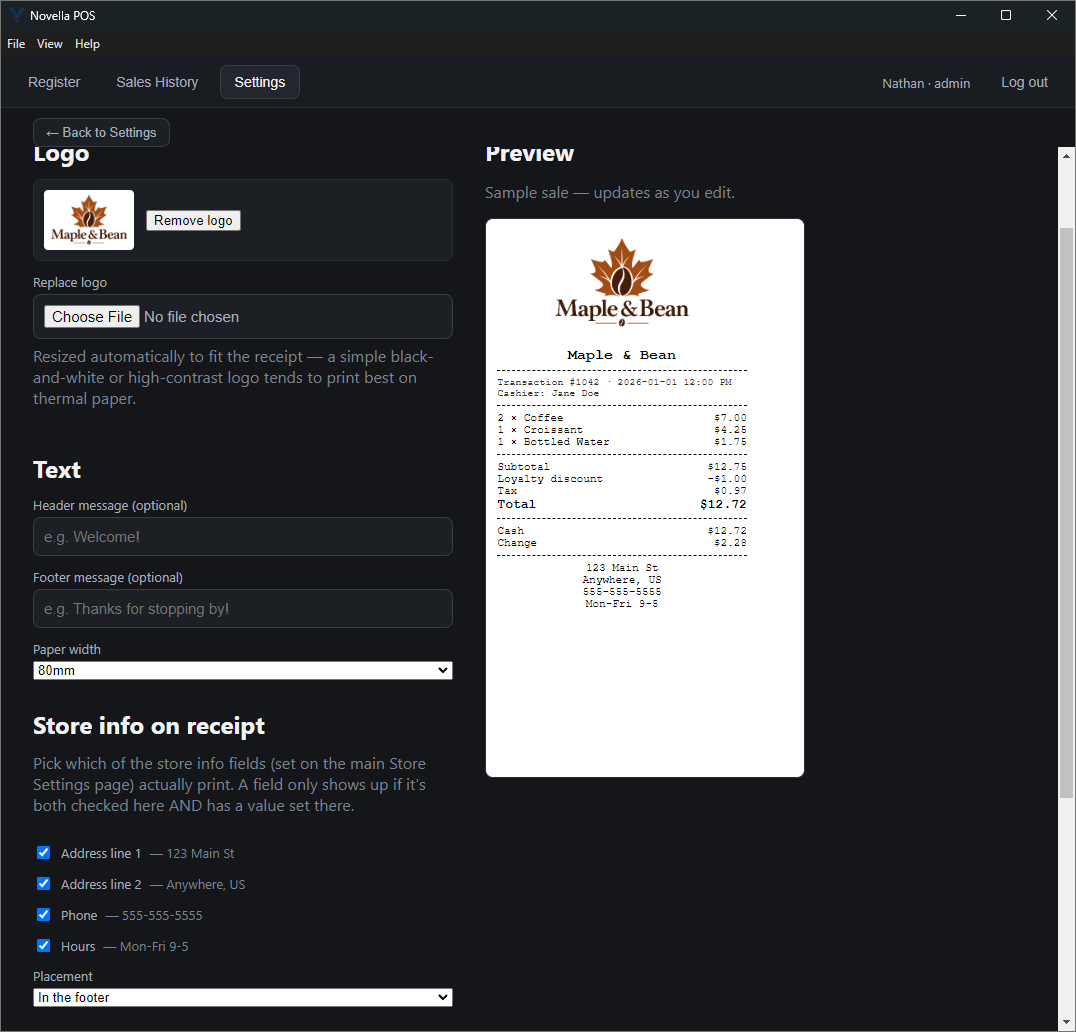
- Your branding on the receipt
- Upload your logo and set a header and footer message.
- Choose what prints
- Decide which store details appear on the receipt, such as address, phone and hours, and where they sit.
- Live preview
- The preview updates as you edit the logo, messages and store-info fields, so you can see exactly what will print before it ever does.
- Per-sale notes
- Add a custom note to an individual sale, such as a tracking number or a pickup date.
- No special printer driver
- Novella POS prints to any printer already installed in Windows. There is no thermal-printer driver to source or configure.
- Cash drawer trigger
- Optionally connect a USB cash-drawer-trigger device to pop the till automatically on cash sales.
- Reprint any receipt
- Every past transaction can be reprinted from Sales History.
Employees and customers
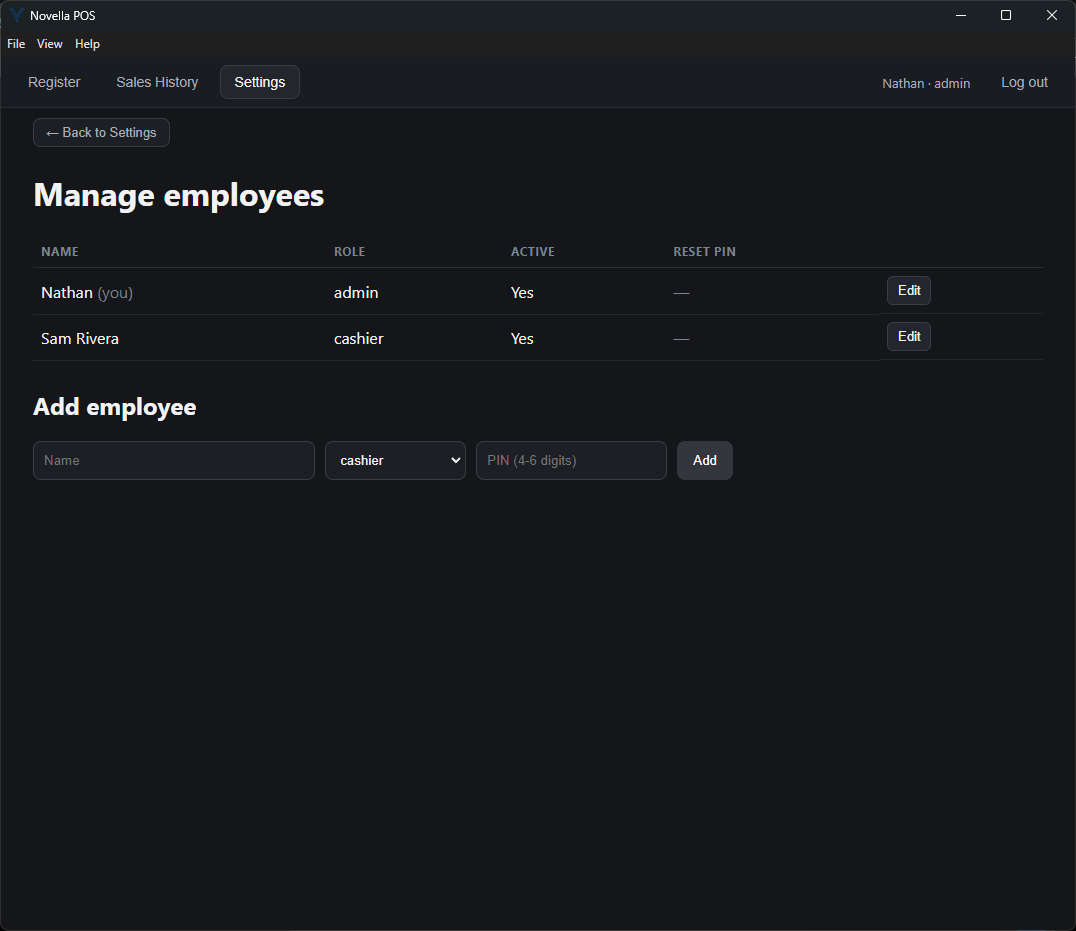
Staff sign in with a PIN rather than a username and password, because nobody wants to type an email address at a register during a rush.
- PIN-based login
- Each employee has their own PIN. No usernames to type.
- Admin and cashier roles
- Administrators reach settings, reports and management screens. Cashiers get the register.
- PIN resets
- An administrator can reset an employee PIN in-app.
- Customer records
- Keep contact information for regulars and look them up at checkout.
- Store credit
- Add credit to a customer balance and redeem it as a tender at checkout.
Discounts
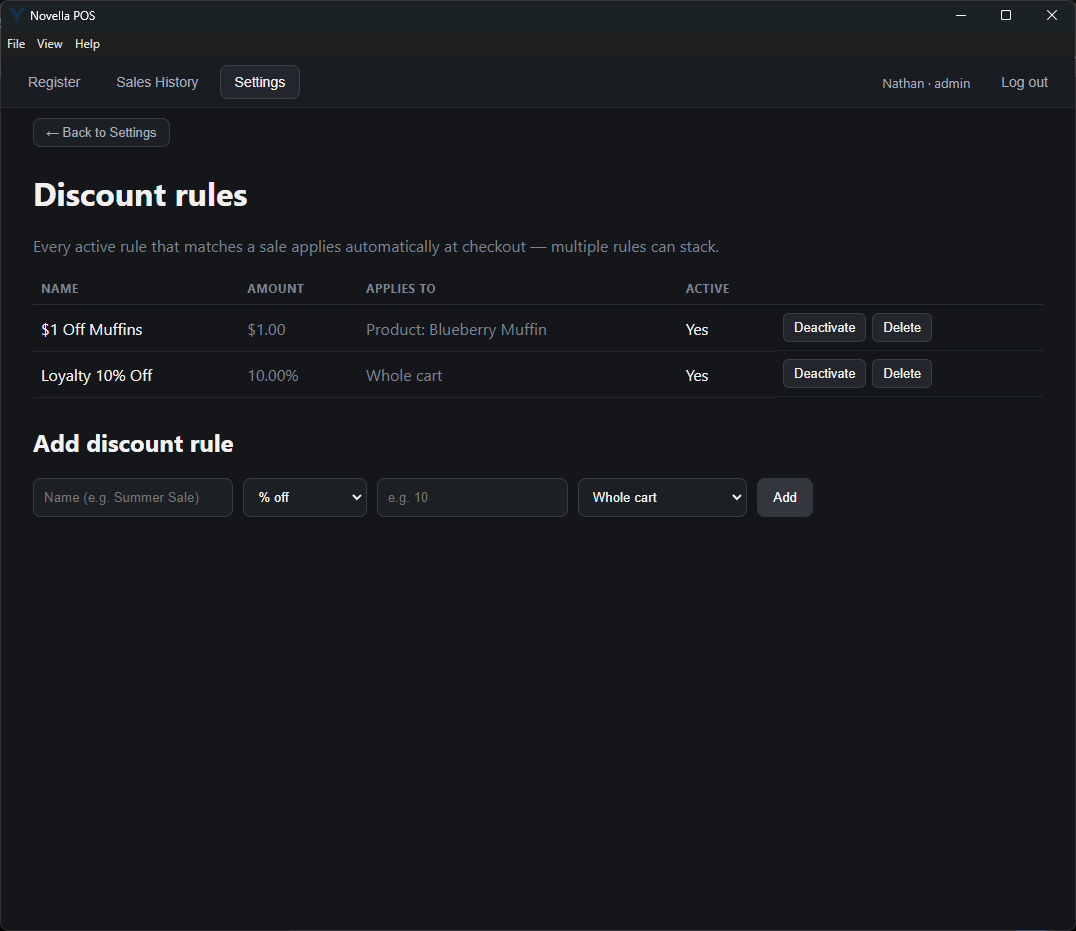
Discounts are rule-based rather than manual, so a promotion applies consistently no matter who is at the register.
- Percent or fixed amount
- Take a percentage off, or a flat dollar amount.
- Scoped where you need it
- Apply a rule to the whole cart, to a single category, or to one specific product.
- Applied automatically
- Once a rule is active, the register applies it at checkout without the cashier having to remember it, and more than one matching rule can stack on the same sale.
Cash drawer management
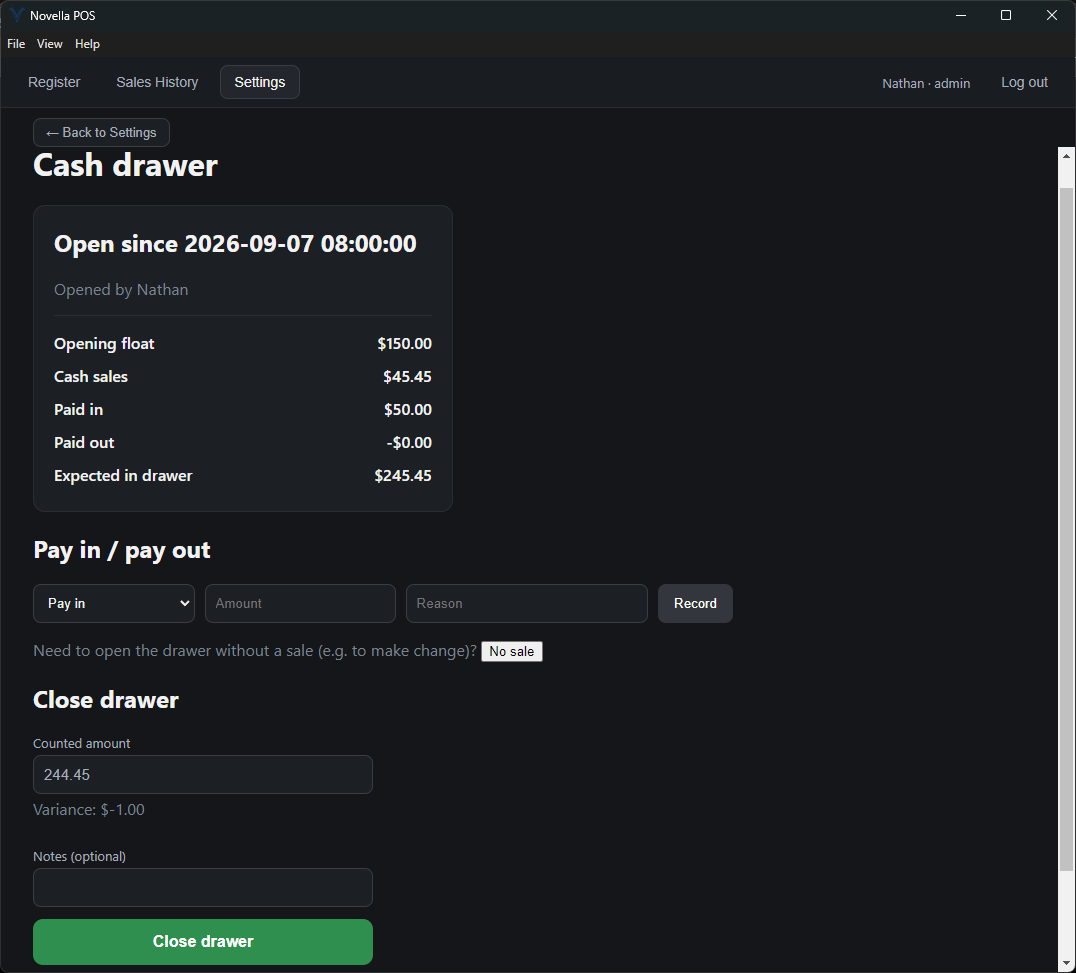
Opening and closing the till is a first-class part of the software, not an afterthought bolted onto reporting.
- Open with a starting float
- Begin a drawer session by recording the cash you are starting with.
- Pay-ins and pay-outs
- Record money added to or taken out of the drawer during a shift, so the count still reconciles at the end of the night.
- No sale
- Open the drawer to make change without ringing a sale. It is logged in the session as its own event, and can trigger the cash-drawer hardware kick if that option is turned on.
- Automatic variance at close-out
- When you close the session, Novella POS calculates the expected total and the variance against your count.
- Full session history
- Every drawer session is kept, so you can go back and see how a given shift closed.
Sales history
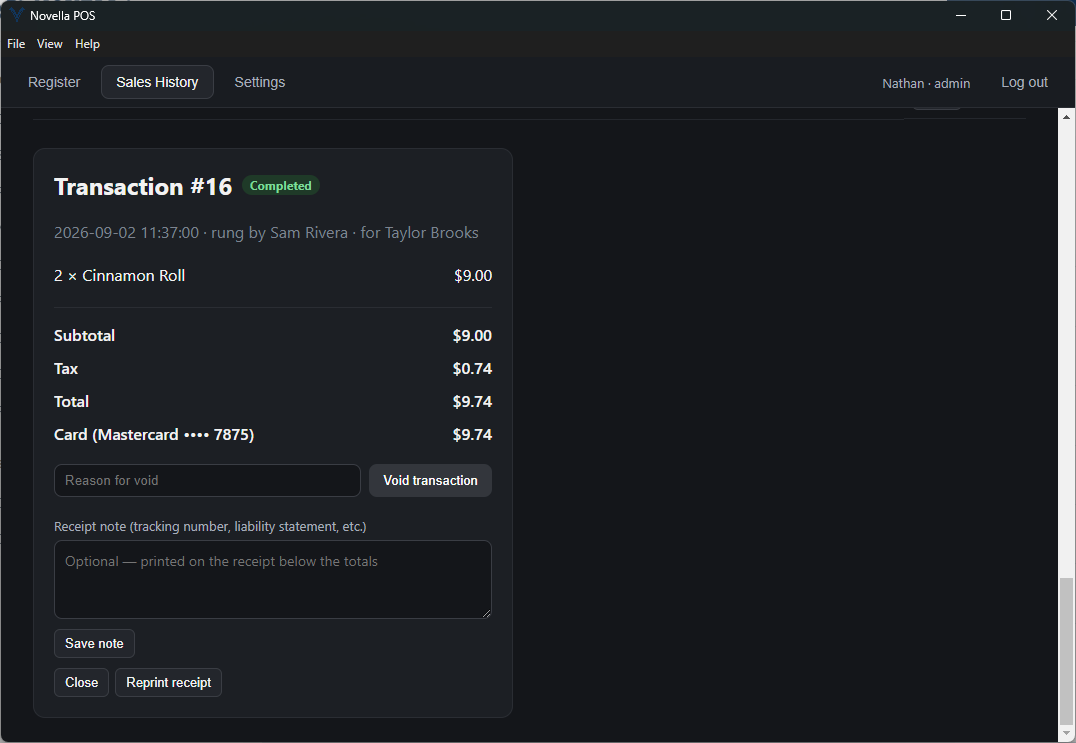
Every transaction stays on the books, including the ones that were reversed.
- Full transaction log
- Browse every sale the register has processed.
- Voids with reason tracking
- A void records why it happened, and automatically reverses any associated card charge.
- Receipt reprints
- Pull up any past sale and print its receipt again.
Reporting
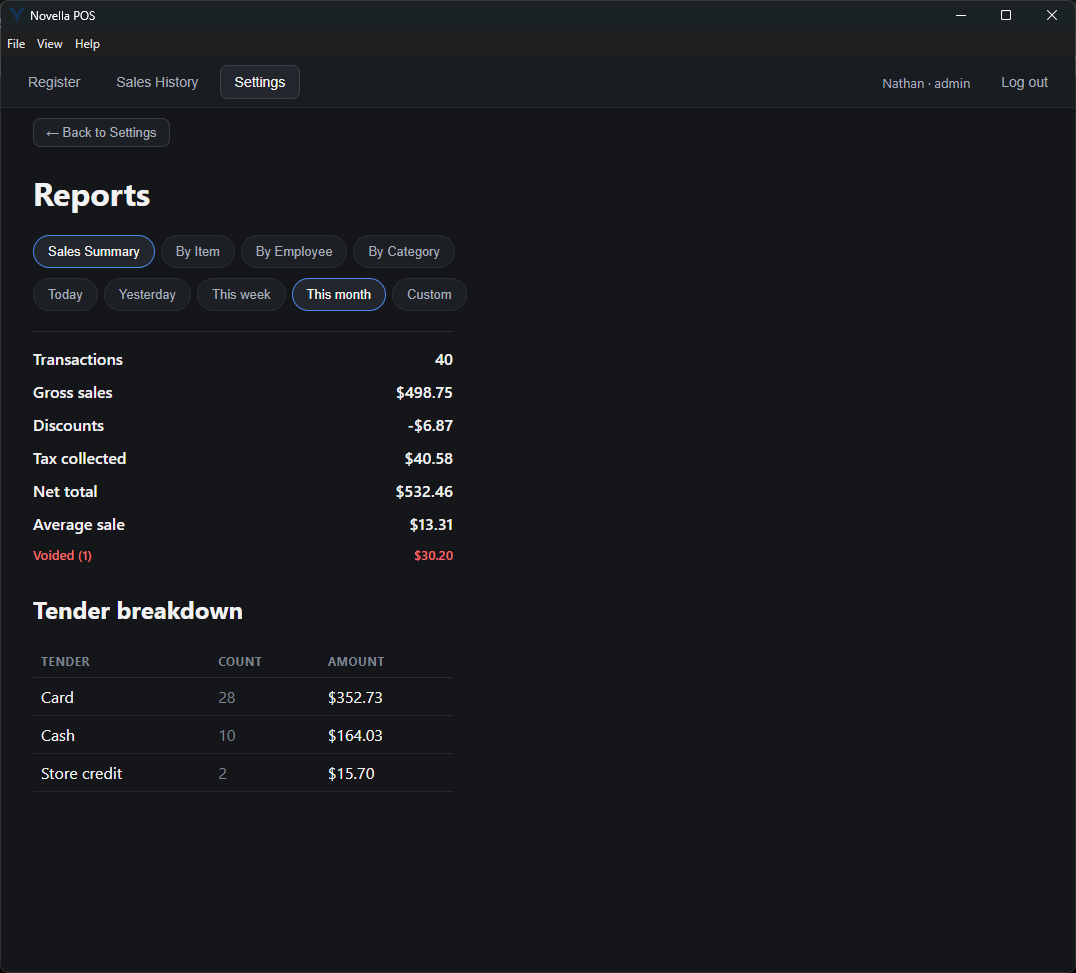
The Sales Summary is the report most owners will live in. It behaves the way an X or Z report on a traditional register does, and the other three answer the questions it raises.
- Sales Summary
- Gross sales, discounts, tax, net total, a breakdown by tender type, and void tracking, for any date range you choose. This is the report that tells you how the day went.
- Sales by Item
- Which products actually moved.
- Sales by Employee
- What each person on the schedule rang up.
- Sales by Category
- How each part of your inventory is performing.
- Date-range presets
- Today, yesterday, this week, this month, or a custom range on every report.
Licensing and setup
Novella POS is a desktop application that you install and activate once. It is not a browser tab and it does not stop working when the connection does.
- Offline activation
- Each install is unlocked once, at first launch, with a cryptographically signed license key. Verification happens on the device, so no internet connection is required to check it and there is no activation server to reach.
- Windows desktop application
- Built on Electron, React and TypeScript, and distributed as a Windows application you install on the machine at the counter.
- Settings live on the device
- Gateway credentials, receipt layout, discount rules and employee records are configured in the application and stored on the machine, with credentials encrypted at rest.
Next step
Want to see any of this in motion?
A short walkthrough is usually faster than a feature list. Tell us what kind of shop you run and we will show you the parts that matter to it.